 OnDevice OCR Business
Personal use? See OnDevice OCR Pro →
The OCR solution for your business
Professional OCR,
right on
your Mac.
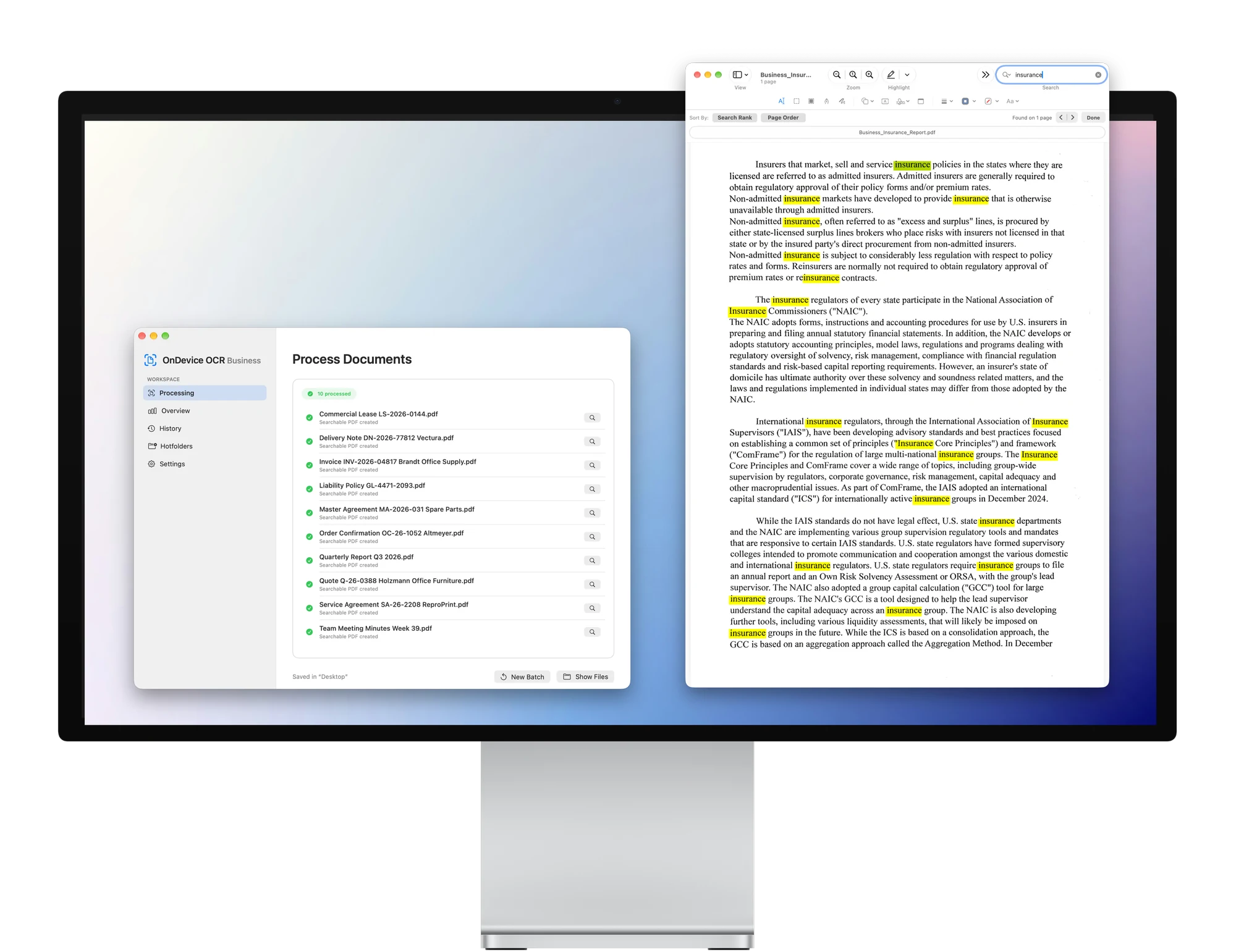
Save valuable working time with automatic folder monitoring (hot folders), QR-based document splitting, and custom workflows.
Get it directlyfor MacCompatible with macOS 15 and later.
- Works 100% offline
- Developed in Germany
- For GDPR-compliant workflows
- One-time purchase
Features
Everything you need for your day-to-day business
Fully local text recognition, optimized for an efficient, time-saving workflow.
-
Batch Processing
Process large folders and document stacks in a single run.
-
Folder Monitoring
Monitor up to 5 hot folders with custom rules — including on your network.
-
Settings Transfer
Export your app settings to a file and import them on other Macs.
-
PDF/A Output
Create searchable, archivable documents in PDF/A-2b format.
-
File Naming
Automatically create meaningful file names from document content — based on your templates and rules.
-
Intelligent Orientation
Straighten skewed scans and automatically rotate misoriented pages based on the text direction.
-
Processing Log
Record processing steps and events — for traceable workflows and easy troubleshooting.
-
Document Splitting
Automatically split large scan batches in watched folders into individual documents using QR separator sheets.
-
Automation
Integrate the app with Apple Shortcuts for custom workflows and scripts.
For law firms & medical practices · document archives · paper-heavy offices
Click to enlarge
Ease of Use
An intuitive, clear user interface
The app is designed so you can find your way around right away — leaving you free to focus on what matters.
Privacy by Design
Privacy first: OnDevice OCR Business collects no user data.
You can use OnDevice OCR Business completely offline — with no uploads, tracking, or telemetry. Because we never receive your content, you do not need a data processing agreement (DPA) with us.
A safe choice for sensitive legal, medical, and financial documents.
Try the app for free.
Get it directlyfor MacFAQ
Frequently Asked Questions
No matching question found. Email us at [email protected]
Direct Purchase & Download
How can I try OnDevice OCR Business before buying?
You can download OnDevice OCR Business directly and try it with all features. Only the output documents carry a watermark.
If you like it, you can open the checkout directly from within the app.
Checkout & Pricing
Pricing & License
How much does OnDevice OCR Business cost?
OnDevice OCR Business costs a one-time $99.00. You can download the app for free beforehand and try all features with a watermark.
Is there a subscription?
No. You buy OnDevice OCR Business once and can use the app indefinitely.
Can I pay by invoice via bank transfer?
Yes. Just email us before your purchase. We will then create the invoice through our payment provider Paddle, which will email it to you. Payment is made by bank transfer to Paddle.
Are updates included in the price — and for how long?
Yes. All updates we release within three years of your purchase are included in the price — bug fixes, new features, and compatibility updates for new macOS versions. This does not include optional add-on features that we offer for separate purchase. We intend to keep updating the app after that for as long as it is actively developed.
Is there a volume discount for multiple licenses?
Yes. When you buy through our website, you get 20% off the total price for three or more licenses.
You receive a single company license file for the number of Macs purchased. The same license file can be used on all licensed devices. The volume discount applies only to direct purchases through this website.
Is there a discount for Pro owners?
Yes. As a Pro customer, you can get Business at a reduced price. Just send us a short email with your proof of purchase, and we will send you a discount code.
Licenses & Activation
How is the license file delivered?
You will receive the license file by email after your purchase. Please also check your spam folder. If the email does not arrive, contact [email protected]. Note: The invoice and the license file arrive in two separate emails — you receive the invoice from our payment processor Paddle and the license file directly from us.
How do I activate the app?
Drag the license file into the app window or double-click it.
What should I do if I lose the license file?
In that case, email us at [email protected] with your proof of purchase.
On how many Macs can the license be used?
When you buy through our website, each license covers one Mac. For a multi-seat purchase, the company license file covers the number of Macs purchased.
What happens when a Mac is replaced? Can the license be transferred?
Yes, the license can easily be transferred. Activation works the same way as the first time.
Does activation work without an internet connection?
Yes. The license file is verified locally using cryptography (signature check in the app); no activation server is contacted.
Refunds
Can I get a refund?
Yes. For purchases made on our website, we offer a full refund within 14 days, no questions asked (a voluntary commitment; any statutory right of withdrawal remains unaffected). For details, see our Refund Policy.
Invoices & Taxes
Do I get a B2B invoice when buying on the website? Can I enter a tax ID?
Yes. After completing your purchase, you receive a PDF invoice from Paddle. You can enter your company details and your tax ID or VAT ID during checkout.
European Union: If you provide a valid VAT ID, the reverse-charge mechanism may apply, provided the requirements for a cross-border B2B transaction are met.
United States: Paddle takes the sales tax of each state into account. Because our prices already include tax, the final amount is the same in all U.S. states. Tax-exempt organizations can submit a valid tax exemption certificate to Paddle support.
Other countries: Paddle calculates any applicable local taxes based on your location. You will see the final amount before completing your purchase. The tax effect of a tax ID you provide depends on the regulations of the respective country.
You can retrieve and download invoices that have already been issued at paddle.net.
Who is Paddle, and why does the company appear on my statement?
Paddle is our payment provider and acts as the seller (merchant of record) for direct purchases.
Which payment methods are available?
When you buy directly through Paddle, you can pay by credit card, PayPal, Apple Pay, Google Pay, and, depending on your country, other local payment methods.
Technical Details
Basics
How does text recognition (OCR) work?
OnDevice OCR Business recognizes the text in scanned documents using Apple’s Vision technology and places it precisely over the document as an invisible, searchable text layer. The original page image is preserved.
Which file formats are supported?
OnDevice OCR Business supports PDF files and the most common image formats, including JPEG, PNG, TIFF, and HEIC/HEIF. You can add individual files or entire folders by drag and drop.
What does batch processing mean?
With batch processing in OnDevice OCR Business, hundreds of pages can be processed in a single run.
Is handwriting recognition supported?
No. OnDevice OCR Business is designed for printed and typed text. Handwriting is not supported at this time.
System Requirements
Does the app run on Apple silicon and Intel Macs?
Yes, OnDevice OCR Business is a universal app and runs natively on both Apple silicon Macs (M1 and later) and Intel Macs.
Which version of macOS is required?
OnDevice OCR Business requires macOS 15 (Sequoia) or later. On macOS 27, Apple’s text recognition, which the app relies on, may temporarily fail on some Macs; the app detects this and lets you know. Try the app on the intended Mac before you buy — the trial is free and has no time limit.
How do I install the app on multiple Macs?
Install OnDevice OCR Business on each Mac and activate it there with the company license file. Set up the app on one Mac first. You can then export the settings and import them on the other Macs.
MDM integration is not currently available.
Does folder monitoring run unattended, e.g., on a Mac mini as a central OCR station?
Yes. Hot folders are designed for unattended operation. A background service monitors the folders even when no window is open and after the Mac restarts.
How many documents or pages can be processed per hour? Are there any limits?
There are no artificial limits in the form of page or document quotas. Processing speed depends on the performance of the Mac and the type of documents.
Features
Can folder monitoring also watch folders on a company server (NAS/SMB)?
Yes. Folder monitoring supports network folders and SMB shares, for example from Synology NAS (DSM 7), macOS File Sharing, or Linux Samba servers. With the free trial (output documents carry a watermark), you can check in advance, on your own network, how it works with your server environment.
What happens if the connection to the NAS is interrupted?
The app detects the interruption and pauses the affected folders. Once the connection is restored, the app automatically resumes processing the pending documents. The app is designed so that no documents are lost and no incomplete output files are created in the process.
Are original files left unchanged during processing?
Yes. The original is never overwritten and can optionally be archived automatically according to a pattern you choose.
How does document splitting with QR codes work?
Create a QR separator sheet directly in OnDevice OCR Business, print it, and place it between your documents. When the stack is scanned into a watched folder, the app automatically detects the separator sheets and splits the stack into individual documents.
How can OCR processing be integrated into local automations?
OnDevice OCR Business can be integrated into local automations via watched folders, Apple Shortcuts, and App Intents. Depending on the workflow, documents can be automatically processed, optimized, merged, named, and tagged with Finder tags.
What information does the processing log contain, and how can it be exported?
The processing log of OnDevice OCR Business records source and destination paths, processing results, features applied (such as PDF/A conversion or merging), as well as archive locations and error messages. You can view the log directly in the app or export it as a CSV file.
Can the CSV export be adapted to existing programs and spreadsheet templates?
Yes. You can limit the export to specific time periods and the columns you need. You can also rename the column headers freely, so the CSV file matches the labels expected by external systems, analysis scripts, or Excel templates.
Are the generated PDF/A files compliant for archiving?
Yes, OnDevice OCR Business creates ISO-compliant PDF/A-2b files, validated with VeraPDF.
What does the “Skip searchable PDFs” option do?
OnDevice OCR Business can distinguish between real scans without a text layer and digital PDFs, such as invoices received by email. Digital PDFs are already searchable and don’t need to be processed with OCR again. If your folders contain both real scans and digital PDF files, OnDevice OCR Business processes only the files that are not yet searchable.
What does Intelligent Orientation do?
Intelligent Orientation detects the text direction on each page and automatically rotates misoriented pages the right way up. Landscape documents are not rotated across the board; a page is corrected only if its text direction indicates it.
How does file naming work?
OnDevice OCR Business can read details such as invoice numbers, customer numbers, or case numbers directly from the document and insert them into the file name. Templates let you define how the name is structured. Rules automatically choose the right template based on the document content — for example, one for invoices and another for letters.
Can OCR be applied again to documents that are already searchable?
Yes. If a document’s existing OCR layer is faulty, you can reprocess the document with OnDevice OCR Business and create a new OCR layer.
Recognition Languages
Which languages can be recognized?
OnDevice OCR Business accurately recognizes text in 13 languages: English, German, French, Spanish, Italian, Portuguese, Dutch, Russian, Chinese (Simplified and Traditional), Japanese (horizontal text), Korean, Turkish, and Vietnamese.
Pro vs. Business
What is the difference between Pro and Business?
Both versions offer local OCR, batch processing, automatic file naming, and automation. Pro monitors one folder. Business extends this to up to five folders, including network folders, and adds the processing log, QR document splitting, PDF/A-2b, and the ability to transfer settings.
Support
Do you offer support?
Yes. We are happy to help with any questions. Just email us at [email protected]. You will usually receive a reply within 2–3 business days.
Privacy & GDPR
Is the app GDPR-compliant?
OnDevice OCR Business is designed for GDPR-compliant workflows. Documents and recognized text are processed entirely locally on your Mac and are not transmitted to us or to third parties. The app contains no tracking and no telemetry. Compliance of your overall process remains your responsibility.
If you connect the app to Ollama, make sure only local AI models are selected.
Is any usage data sent to you?
No. The app contains no tracking and no telemetry and does not report to us how you use it. Technical diagnostic information stays on your Mac and is shared with us only if you export and send it yourself for a support request. For the connections the app makes for updates and the price display, see “Which internet connections does the app make?”
Are documents or recognized text transmitted?
No. OnDevice OCR Business processes documents and recognized text entirely locally on your Mac. They are not transmitted to us or to third parties. The only exception is an entirely optional feature: if you connect the app to Ollama and choose a cloud model there, Ollama forwards text and image excerpts of the marked areas to that cloud service. With local models, everything stays on your Mac. No internet connection is required to process documents.
Which internet connections does the app make?
None for the work itself: Text recognition and file naming run entirely on your Mac by default. The optional connection to Ollama also connects only to Ollama on your Mac. By default, the website version checks ondeviceocr.com for updates once a day; you can turn this off in Settings under “General.” As long as no license is active, it requests the current price at launch from our license service, which retrieves the price for your country from Paddle. No documents or recognized text are transmitted in the process. Without an internet connection, the app works without restriction.
Is a data processing agreement (DPA) required?
No. By default, your documents and OCR content are processed exclusively on your Mac. We do not receive this data and therefore do not process it on your behalf. That is why you do not need a DPA with us to use the app. If you would like to send us a document for a support request, please remove any personal data first or contact us beforehand.
Where are logs and job data stored?
The processing database and the diagnostic log are stored only locally in the app’s data folder and are not transmitted automatically. If needed, you can export technical diagnostics yourself. File names, folders, paths, and server names are replaced with placeholders; document contents are not included.