
Split Document Stacks on Your Mac with a QR Separator Sheet
How to reliably split large stacks of scanned documents using a QR separator sheet.
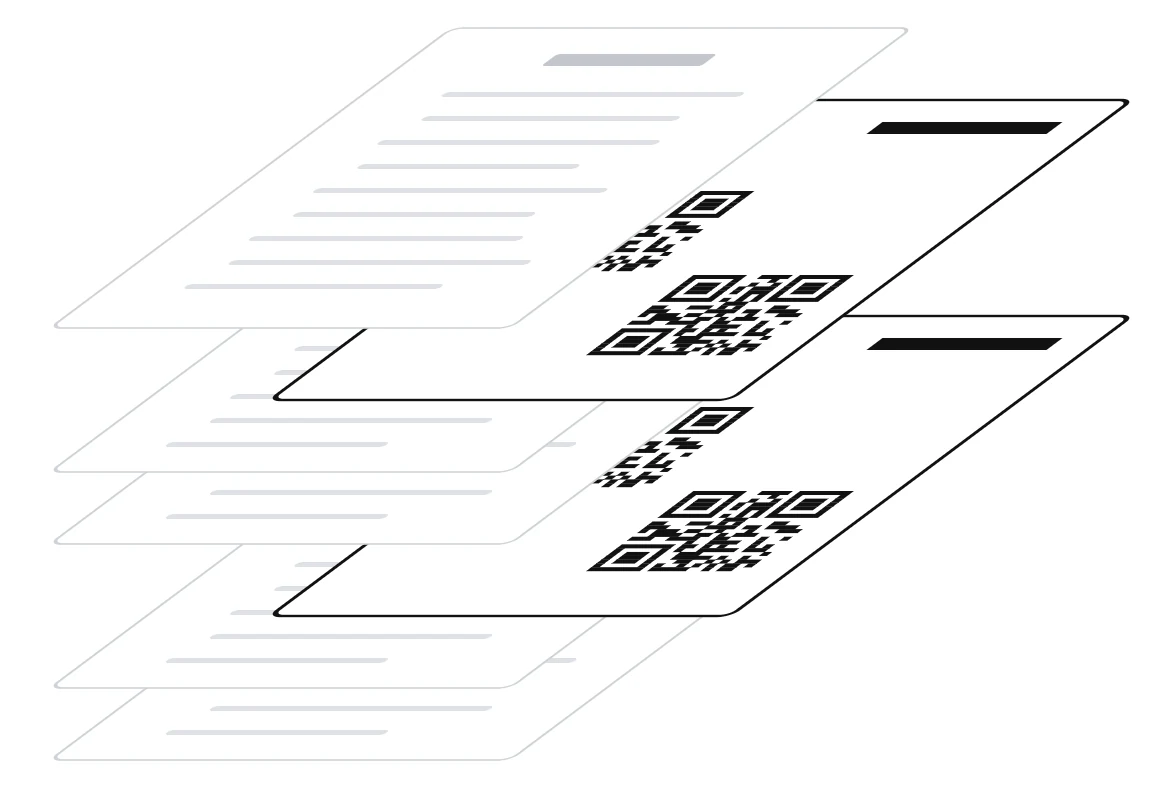
If you use an automatic document feeder (ADF) in the office to scan many unrelated documents – such as invoices, receipts, and notes – in one go, you should use an equally simple and reliable method to separate them again afterwards.
In a few steps, we’ll show you what modern document separation can look like:
- Open OnDevice OCR Business and click “Hot Folders” → “Add Folder”.
- Choose the input folder where your (network) scanner saves the PDF or TIFF files.
-
Now choose the output folder where the separated documents should be saved afterwards.
If you do not choose an output folder, the separated documents are saved directly in the input folder, next to the original document.
-
Now click the “Create Separator Sheet…” button and save the generated QR separator sheet.
-
Click “Add” and confirm the permission dialogs.
OnDevice OCR Business needs these permissions to read from the selected folders and to save the finished documents there.
-
The hot folder is now active and monitors the folder where your scanner saves the documents.
-
Finally, print as many copies of the QR separator sheet as you need.
With duplex scanners, it is advisable to print the sheets double-sided.
Done
The next time you scan, place the printed separator sheets between the documents, and OnDevice OCR Business will split them accordingly and save the individual PDF files in the output folder.
If you would also like to have the documents named automatically and saved in suitable subfolders based on their content – e.g. invoices in an Invoices folder instead of all together in the output folder – you may be interested in the guides on automatic naming and automatic sorting.